

Logcat is the Android logging system provides a mechanism for collecting and viewing system debug output. Logs from various applications and portions of the system are collected in a series of circular buffers.
Non-rooted device:
Matlog/Laughing Logger app (Recommended):
Android Studio:
ADB command line (Advanced):
Rooted device/emulator/virtual machine:
Non-rooted device:
Matlog/Laughing Logger app (Recommended):
Download Matlog or Laughing Logger app for Android and install it
No PC method (Android 11 and above & Wi-Fi required)
Note: Some devices running Android 11 and above don't have Wireless Debugging. If you don't have Wireless Debugging, and don't have Wi-Fi, then you need PC
Download aShellYou app: Releases · DP-Hridayan/aShellYou
Follow the tutorial how to Connect Self Device: Wireless Debugging Setup
If you have problem connecting, use Shizuku method instead

 github.com
After connecting, tap the ADB via Wireless Debugging or Local ADB card, select the connected device, and run one of the commands
Laughing Logger:
Matlog:
If it says "Process exited with code: 0", it means it is running successfully

PC method
Note: You need a basic knowledge of CMD/Terminal
First, enable USB debugging: Configure on-device developer options | Android Studio | Android Developers
Download standalone SDK Platform Tools for Windows/Mac/Linux: SDK Platform Tools release notes | Android Developers
Open CMD/Terminal.
Navigate to platform tools directory using "cd" command
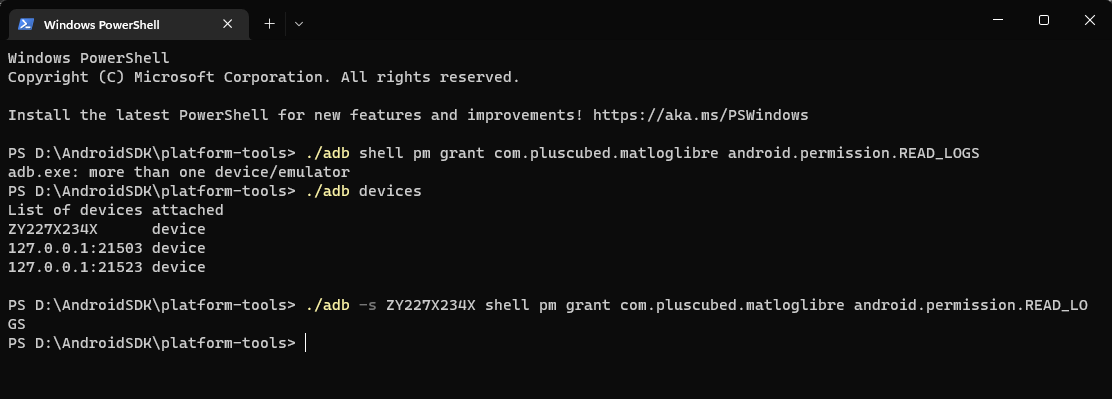
Copy and paste this command into CMD/Terminal
Laughing Logger:
Matlog:
See more about ADB: Android Debug Bridge (adb) | Android Developers
Recording logs
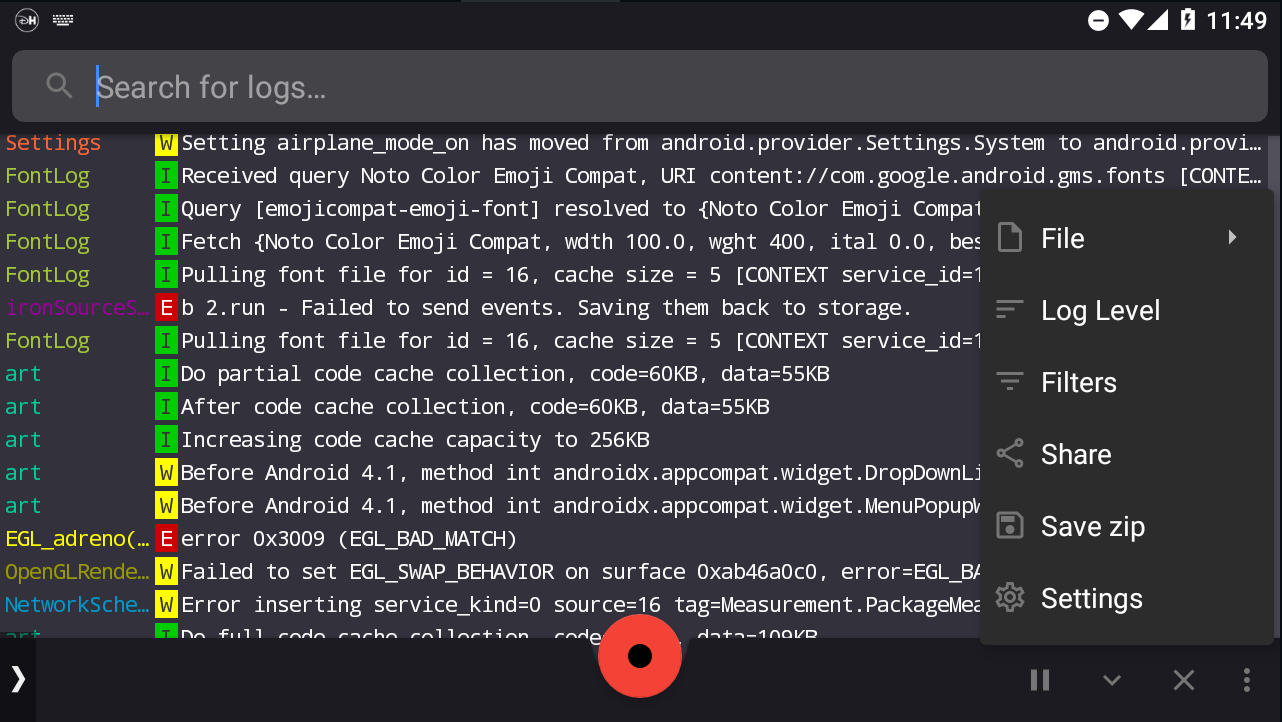
After giving the app permisson to read logs, you can now record logs. During recording, make sure to replicate a bug or crash to catch the useful logs for diagnosis
Laughing Logger file location:
No PC method (Android 11 and above & Wi-Fi required)
Note: Some devices running Android 11 and above don't have Wireless Debugging. If you don't have Wireless Debugging, and don't have Wi-Fi, then you need PC
Download aShellYou app: Releases · DP-Hridayan/aShellYou
Follow the tutorial how to Connect Self Device: Wireless Debugging Setup
If you have problem connecting, use Shizuku method instead
Shizuku Setup
A material you designed app for your ADB needs. Contribute to DP-Hridayan/aShellYou development by creating an account on GitHub.
github.com
After connecting, tap the ADB via Wireless Debugging or Local ADB card, select the connected device, and run one of the commands
Laughing Logger:
Code:
adb shell pm grant org.laughing.logger android.permission.READ_LOGSMatlog:
Code:
adb shell pm grant com.pluscubed.matloglibre android.permission.READ_LOGSIf it says "Process exited with code: 0", it means it is running successfully
PC method
Note: You need a basic knowledge of CMD/Terminal
First, enable USB debugging: Configure on-device developer options | Android Studio | Android Developers
Download standalone SDK Platform Tools for Windows/Mac/Linux: SDK Platform Tools release notes | Android Developers
Open CMD/Terminal.
Navigate to platform tools directory using "cd" command
Copy and paste this command into CMD/Terminal
Laughing Logger:
Code:
./adb shell pm grant org.laughing.logger android.permission.READ_LOGSMatlog:
Code:
./adb shell pm grant com.pluscubed.matloglibre android.permission.READ_LOGSSee more about ADB: Android Debug Bridge (adb) | Android Developers
Recording logs
After giving the app permisson to read logs, you can now record logs. During recording, make sure to replicate a bug or crash to catch the useful logs for diagnosis
Laughing Logger file location:
- Android 11 and above: /storage/emulated/0/Android/media/org.laughing.logger/Laughing Logger/saved_logs/
- Android 10 and below: /storage/emulated/0/Laughing Logger/saved_logs/
- Android 11 and above: /storage/emulated/0/Documents/matlog/savedlogs
- Android 10 and below: /storage/emulated/0/matlog/savedlogs
Android Studio:
Note: USB debugging is required. Android Studio might be complicated to setup, but the logcat interface is easier to use
For phones and tablets: Enable USB debugging: Configure on-device developer options | Android Studio | Android Developers
For emulators:
- AVD/MEmuPlay: Rebooting/starting the emulator and it will automatically connect.
- LDPlayer: Open emulator settings > Other > And change ADB debugging to "Enable remote connection"
- Bluestacks: Open emulator settings > Advanced > Turn on "Connect to Android at 127.0.0.1:XXXX"
- Nox: Manually connect to adb by typing adb connect 127.0.0.1:62001 into CMD/Powershell. Port for the main instance is 62001. Other instances may have open ports starting with 62025 or above
- MuMu: Manually connect to adb by typing adb connect 127.0.0.1:7555 into CMD/Powershell. Port is always 7555 regardless of instance
- Other emulators: Figure out the port by yourself. You can use network tool like netstat to check
Download Android Studio for Windows/Mac/Linux: Download Android Studio & App Tools - Android Developers
Install Android Studio: Install Android Studio | Android Developers
After installation, open Android Studio and create a new project.
At the bottom of toolbar, open the logcat. Your device should be detected, and will constantly sending logs.

To save logs, simply select all (CTRL + A), copy (CTRL + C) and paste (CTRL + V) onto text editor, and save as text file.
Video tutorial:
For phones and tablets: Enable USB debugging: Configure on-device developer options | Android Studio | Android Developers
For emulators:
- AVD/MEmuPlay: Rebooting/starting the emulator and it will automatically connect.
- LDPlayer: Open emulator settings > Other > And change ADB debugging to "Enable remote connection"
- Bluestacks: Open emulator settings > Advanced > Turn on "Connect to Android at 127.0.0.1:XXXX"
- Nox: Manually connect to adb by typing adb connect 127.0.0.1:62001 into CMD/Powershell. Port for the main instance is 62001. Other instances may have open ports starting with 62025 or above
- MuMu: Manually connect to adb by typing adb connect 127.0.0.1:7555 into CMD/Powershell. Port is always 7555 regardless of instance
- Other emulators: Figure out the port by yourself. You can use network tool like netstat to check
Download Android Studio for Windows/Mac/Linux: Download Android Studio & App Tools - Android Developers
Install Android Studio: Install Android Studio | Android Developers
After installation, open Android Studio and create a new project.
At the bottom of toolbar, open the logcat. Your device should be detected, and will constantly sending logs.
To save logs, simply select all (CTRL + A), copy (CTRL + C) and paste (CTRL + V) onto text editor, and save as text file.
Video tutorial:
ADB command line (Advanced):
Note: USB debugging is required and you need a basic knowledge of CMD/Terminal
For phones and tablets: Enable USB debugging: Configure on-device developer options | Android Studio | Android Developers
For emulators:
- AVD/MEmuPlay: Rebooting/starting the emulator and it will automatically connect.
- LDPlayer: Open emulator settings > Other > And change ADB debugging to "Enable remote connection"
- Bluestacks: Open emulator settings > Advanced > Turn on "Connect to Android at 127.0.0.1:XXXX"
- Nox: Manually connect to adb by typing adb connect 127.0.0.1:62001 into CMD/Powershell. Port for the main instance is 62001. Other instances may have open ports starting with 62025 or above
- MuMu: Manually connect to adb by typing adb connect 127.0.0.1:7555 into CMD/Powershell. Port is always 7555 regardless of instance
- Other emulators: Figure out the port by yourself. You can use network tool like netstat to check
Download standalone SDK Platform Tools for Windows/Mac/Linux: SDK Platform Tools release notes | Android Developers
Open CMD/Terminal
Change directory to platform tools directory using "cd" command
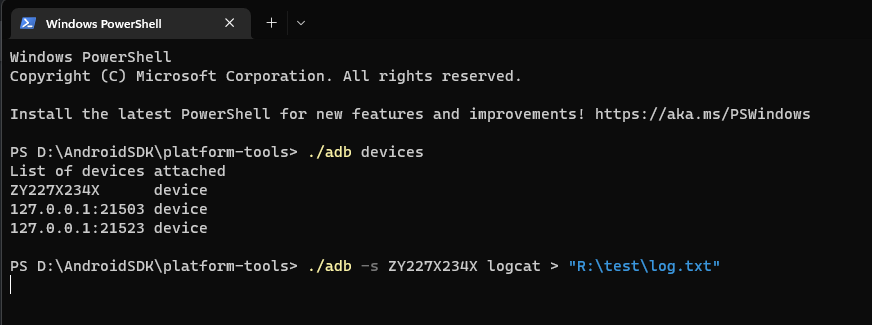
Type
or on current directory
If you have more than one device connected, list your devices
And use -s flag
Nothing will appear on the prompt but it is actually running, it is because the output are saving to disk directly. To stop logging, simply close the window
See more about adb logcat:

 developer.android.com
Video tutorial:
For phones and tablets: Enable USB debugging: Configure on-device developer options | Android Studio | Android Developers
For emulators:
- AVD/MEmuPlay: Rebooting/starting the emulator and it will automatically connect.
- LDPlayer: Open emulator settings > Other > And change ADB debugging to "Enable remote connection"
- Bluestacks: Open emulator settings > Advanced > Turn on "Connect to Android at 127.0.0.1:XXXX"
- Nox: Manually connect to adb by typing adb connect 127.0.0.1:62001 into CMD/Powershell. Port for the main instance is 62001. Other instances may have open ports starting with 62025 or above
- MuMu: Manually connect to adb by typing adb connect 127.0.0.1:7555 into CMD/Powershell. Port is always 7555 regardless of instance
- Other emulators: Figure out the port by yourself. You can use network tool like netstat to check
Download standalone SDK Platform Tools for Windows/Mac/Linux: SDK Platform Tools release notes | Android Developers
Open CMD/Terminal
Change directory to platform tools directory using "cd" command
Type
Code:
./adb logcat > (path)or on current directory
Code:
./adb logcat > log.txtIf you have more than one device connected, list your devices
Code:
./adb devicesAnd use -s flag
Code:
./adb -s (device name) logcat > (path)Nothing will appear on the prompt but it is actually running, it is because the output are saving to disk directly. To stop logging, simply close the window
See more about adb logcat:
Logcat command-line tool | Android Studio | Android Developers
Logcat is a command-line tool that dumps a log of system messages, including stack traces, when the device throws an error and sends messages that you have written from your app with the Log class.
developer.android.com
Video tutorial:
Rooted device/emulator/virtual machine:
Download Matlog or Laughing Logger app for Android and install it
Launch the app and grant root permission
Now you can record logs
Laughing Logger file location:
Launch the app and grant root permission
Now you can record logs
Laughing Logger file location:
- Android 11 and above: /storage/emulated/0/Android/media/org.laughing.logger/Laughing Logger/saved_logs/
- Android 10 and below: /storage/emulated/0/Laughing Logger/saved_logs/
- Android 11 and above: /storage/emulated/0/Documents/matlog/savedlogs
- Android 10 and below: /storage/emulated/0/matlog/savedlogs
Attachments
Last edited:
