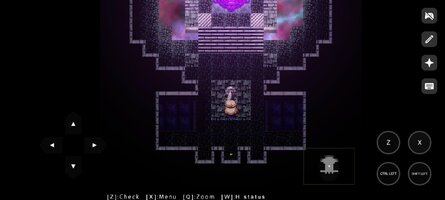
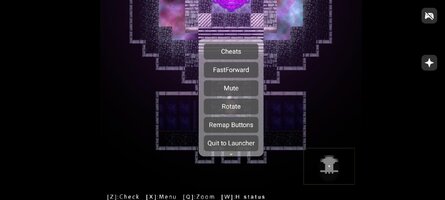
Here is an official, professional guide to installing, configuring, and optimizing JoiPlay for Android. Designed for both first-time users and experienced players, this handbook covers full installation, performance tuning, and built-in developer features.
1. Prerequisites & Core Installation
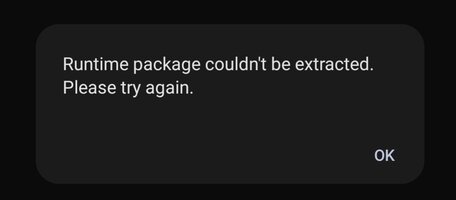
Older RPG Maker titles (XP, VX, VX Ace) rely on standardized graphic and audio assets called Runtime Packages (RTP). Missing RTP files will prevent games from opening or cause missing texture glitches.
RPG Maker Cheat Engine
JoiPlay includes an integrated script hook for real-time memory editing in RPG Maker games.
Ren'Py visual novels utilize a native developer terminal to view variables and alter execution flow.
1. Prerequisites & Core Installation
- Source the Latest Builds: Never download JoiPlay or its engine plugins from the Google Play Store, as those builds are deprecated. Always obtain the latest stable public releases directly from the Official JoiPlay Patreon
- RPG Maker Plugin: Mandatory for games built on RPG Maker XP, VX, VX Ace, MV, and MZ engines.
- Ren'Py Plugin: Required for Ren'Py visual novels.
- TyranoBuilder / ScummVM Plugins: Optional dependencies for specific game engines.
- Note: Plugins function seamlessly in the background and do not need to be opened directly.
- Grant Storage Access: Launch JoiPlay for the first time and allow All Files Access permissions. Denying storage access will cause games to crash or render a black screen.
Older RPG Maker titles (XP, VX, VX Ace) rely on standardized graphic and audio assets called Runtime Packages (RTP). Missing RTP files will prevent games from opening or cause missing texture glitches.
- Automated Online Extraction: Upon launching a game with missing dependencies, JoiPlay displays an "RTP Missing" prompt. Tap Choose / Download and select the DEFAULT (~185MB) package. JoiPlay will fetch and unpack the assets automatically
- Manual File Extraction: If you already have an offline RTP package (e.g.,
XP_RTP.exeorRPGVXAce_RTP.zip): - 1. Tap Choose on the missing RTP popup within JoiPlay.
- 2. Browse to your local download directory and select the RTP archive.
- 3. Allow JoiPlay to unpack the files until the "Extracted Successfully" dialog appears.
- Interactive On-Screen Layout Editor:
- Open JoiPlay's top overlay bar during gameplay by tapping the Chevron icon (\/or) or Controller icon.
- Tap the Pencil / Edit icon to unlock layout positioning.
- Drag & Resize: Freely re-position virtual directional pads and action buttons across the viewport.
- Create Extra Buttons: Tap the + icon in the overlay toolbar to assign specific keyboard keys to dedicated touch controls (e.g., mapping Shift for running or Ctrl for fast-forwarding text).
- Tap Save to lock your custom touch layout.
- Access JoiPlay's home screen -> Settings -> Gamepad Settings.
- Select Remap Controller Buttons to link physical inputs (Bluetooth controllers, USB-C gamepads, or handheld consoles) to key bindings.
- Enable Path Caching (RPG Maker Engine):
- Navigate to JoiPlay Settings -> RPG Maker Settings -> toggle Enable Path Cache to ON.
- Technical Benefit: Eliminates micro-stutters during map transitions by caching game file directories in memory.
- Graphics Renderer Mode:
- Under engine-specific settings, adjust the Render Type:
- WebGL: Provides high frame rates and optimal shader rendering on modern Android devices.
- Canvas / Agile Mode: Offers lower hardware overhead for entry-level or older hardware experiencing frame drops.
- Android Battery Throttling Fix:
- Open system Settings -> Apps -> JoiPlay -> Battery.
- Set the battery policy from Optimized to Unrestricted. This prevents the Android OS from downclocking CPU resources during extended play sessions.
RPG Maker Cheat Engine
JoiPlay includes an integrated script hook for real-time memory editing in RPG Maker games.
- Activation: Open the overlay menu in-game and tap the Magic Wand Icon.
- Available Functions:
- Currency & Items: Instantly alter gold values or inject missing inventory items directly into save files.
- Stat Overrides: Adjust character levels, max stats, or toggle infinite HP/MP flags.
- Noclip Mode: Bypass collision checks to pass through impassable terrain or blocked doorways.
- Switch & Variable Editor: Manually alter quest flags or numerical variables to resolve broken quest triggers.
- Troubleshooting: If the Magic Wand icon is inactive, go to Settings \rightarrow RPG Maker Settings and enable Postload Scripts.
Ren'Py visual novels utilize a native developer terminal to view variables and alter execution flow.
- Activation:
- 1. Long-press a Ren'Py game tile on the home screen -> tap Edit -> check Developer Mode / Enable Console.
- 2. While in-game, open the overlay menu and select the Terminal Icon, or press
Shift + Ousing a mapped virtual button.
- Essential Console Commands:
variable_name = value(e.g.,money = 99999)— Rewrites local game variables in real time.- jump
<label_name>— Immediately branches execution to a chosen plot segment or dialogue line. - watch
<variable_name>— Displays an active debug box tracking value changes on-screen.
Last edited: