Playstore Link :

App Freezer: Save Battery - Apps on Google Play
Freeze apps you rarely use so they can't run without you knowing.
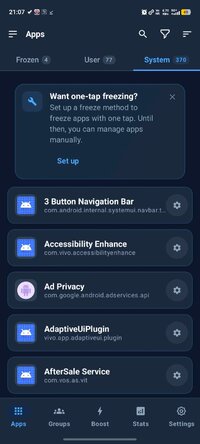
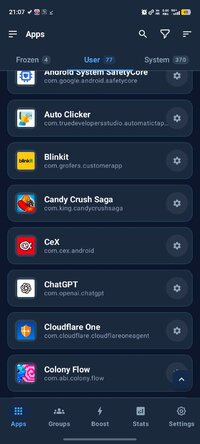
App Freezer disables the apps you rarely use, so they can't run in the background, sync, send notifications or wake your phone. When you need an app again, unfreeze it in one tap. Its data, settings and sign-ins are still there. It works with root, Shizuku or wireless ADB, so you don't need a rooted phone or a PC.
 FREEZE APPS AND BLOATWARE
• Freeze and unfreeze any user app, or pre-installed system apps you never asked for
• Frozen apps disappear from your launcher and stop using battery, data and memory
• Every freeze is checked: App Freezer confirms the app really changed state
• Safety checks warn you before you freeze something your phone needs
• Re-freeze after restart puts things back the way you left them
 BOOST: ONE SCAN, EVERY FIX
• Find app cache to clear, apps running in the background and apps worth freezing
• See unused apps you can uninstall, your largest apps, and why some apps are never suggested
• Nothing changes until you tap Boost. Frozen and restricted apps can be put back with Undo
GROUPS
• Bundle apps into groups like Work, Social or Games
• Freeze or unfreeze a whole group in one tap
• Control groups from home-screen widgets, launcher shortcuts or a Quick Settings tile
 AUTO-FREEZE SCHEDULES AND TRIGGERS
• Weekly schedules freeze a group at night and unfreeze it in the morning
• Triggers freeze a group when the battery runs low, you switch to mobile data, you unplug the charger or the screen turns off
• Freeze apps automatically once they go unused for a while
• A history log shows every automatic and manual run
FOCUSED LAUNCH
• Open an app with a group frozen first so it gets the whole device, for example a game
• Unfreeze everything again from the notification, or pin it to your home screen as a shortcut
SEE WHAT YOUR APPS ARE DOING
• Alarms and wake locks: find the apps that keep waking your phone or keeping it awake
• Storage, network and battery use per app, plus live RAM and CPU load
• Freeze or restrict the worst offenders straight from the list
FREEZE WITH OR WITHOUT ROOT
• Wireless ADB (Android 11+): pair through a notification. No PC, no cable
• Shizuku: works with any Shizuku-compatible manager, including Sui
• Root: system-level freezing with no extra background service
• Device owner mode for setups that need to survive reboots without root
• Set a backup method that takes over if your main one stops working
MORE TOOLS
• Archive apps on Android 15+ to free storage while keeping their data and icon
• Uninstall several apps in one pass
• Back up and restore your groups, schedules and settings
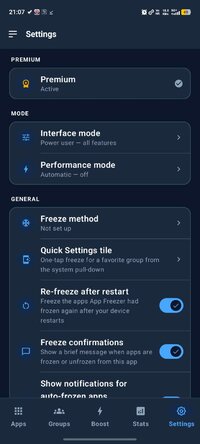
• Minimal mode for simple one-tap freezing, or Power mode with every feature
• App lock with your fingerprint or face
• Light and pure black dark themes, with your choice of accent color
• Available in 16 languages
NOTHING IS DELETED
Freezing happens on your device, using Android's own app controls. A frozen app keeps all its data until you unfreeze it.
HOW TO START
1. Install App Freezer and choose a freeze method: wireless ADB, Shizuku or root.
2. Open the Apps tab and tap the snowflake next to any app.
3. Create a group or a schedule to freeze apps automatically.
NOTES
• Freezing a system app can affect features that depend on it. App Freezer warns you about risky apps, and anything can be unfrozen again.
• Wireless ADB needs Android 11 or newer and a Wi-Fi connection while it pairs.
• App Freezer is free with ads. Remove them with a one-time purchase or a subscription.
FREEZE APPS AND BLOATWARE• Freeze and unfreeze any user app, or pre-installed system apps you never asked for
• Frozen apps disappear from your launcher and stop using battery, data and memory
• Every freeze is checked: App Freezer confirms the app really changed state
• Safety checks warn you before you freeze something your phone needs
• Re-freeze after restart puts things back the way you left them
BOOST: ONE SCAN, EVERY FIX• Find app cache to clear, apps running in the background and apps worth freezing
• See unused apps you can uninstall, your largest apps, and why some apps are never suggested
• Nothing changes until you tap Boost. Frozen and restricted apps can be put back with Undo
GROUPS
• Bundle apps into groups like Work, Social or Games
• Freeze or unfreeze a whole group in one tap
• Control groups from home-screen widgets, launcher shortcuts or a Quick Settings tile
AUTO-FREEZE SCHEDULES AND TRIGGERS• Weekly schedules freeze a group at night and unfreeze it in the morning
• Triggers freeze a group when the battery runs low, you switch to mobile data, you unplug the charger or the screen turns off
• Freeze apps automatically once they go unused for a while
• A history log shows every automatic and manual run
FOCUSED LAUNCH
• Open an app with a group frozen first so it gets the whole device, for example a game
• Unfreeze everything again from the notification, or pin it to your home screen as a shortcut
SEE WHAT YOUR APPS ARE DOING
• Alarms and wake locks: find the apps that keep waking your phone or keeping it awake
• Storage, network and battery use per app, plus live RAM and CPU load
• Freeze or restrict the worst offenders straight from the list
FREEZE WITH OR WITHOUT ROOT
• Wireless ADB (Android 11+): pair through a notification. No PC, no cable
• Shizuku: works with any Shizuku-compatible manager, including Sui
• Root: system-level freezing with no extra background service
• Device owner mode for setups that need to survive reboots without root
• Set a backup method that takes over if your main one stops working
MORE TOOLS
• Archive apps on Android 15+ to free storage while keeping their data and icon
• Uninstall several apps in one pass
• Back up and restore your groups, schedules and settings
• Minimal mode for simple one-tap freezing, or Power mode with every feature
• App lock with your fingerprint or face
• Light and pure black dark themes, with your choice of accent color
• Available in 16 languages
NOTHING IS DELETED
Freezing happens on your device, using Android's own app controls. A frozen app keeps all its data until you unfreeze it.
HOW TO START
1. Install App Freezer and choose a freeze method: wireless ADB, Shizuku or root.
2. Open the Apps tab and tap the snowflake next to any app.
3. Create a group or a schedule to freeze apps automatically.
NOTES
• Freezing a system app can affect features that depend on it. App Freezer warns you about risky apps, and anything can be unfrozen again.
• Wireless ADB needs Android 11 or newer and a Wi-Fi connection while it pairs.
• App Freezer is free with ads. Remove them with a one-time purchase or a subscription.
*Special Features*
1 . Premium Features Unlocked
Free Download:
! Hidden Content !
You must be registered and either click Like under this post or leave a comment before you can see the hidden links.
You may need to refresh the page after clicking Like. If you’re still having trouble revealing the hidden links, please
read this.
Did you know? VIP Members can see all links instantly, no unlocking required.
Interested? Get VIP here.
Interested? Get VIP here.